

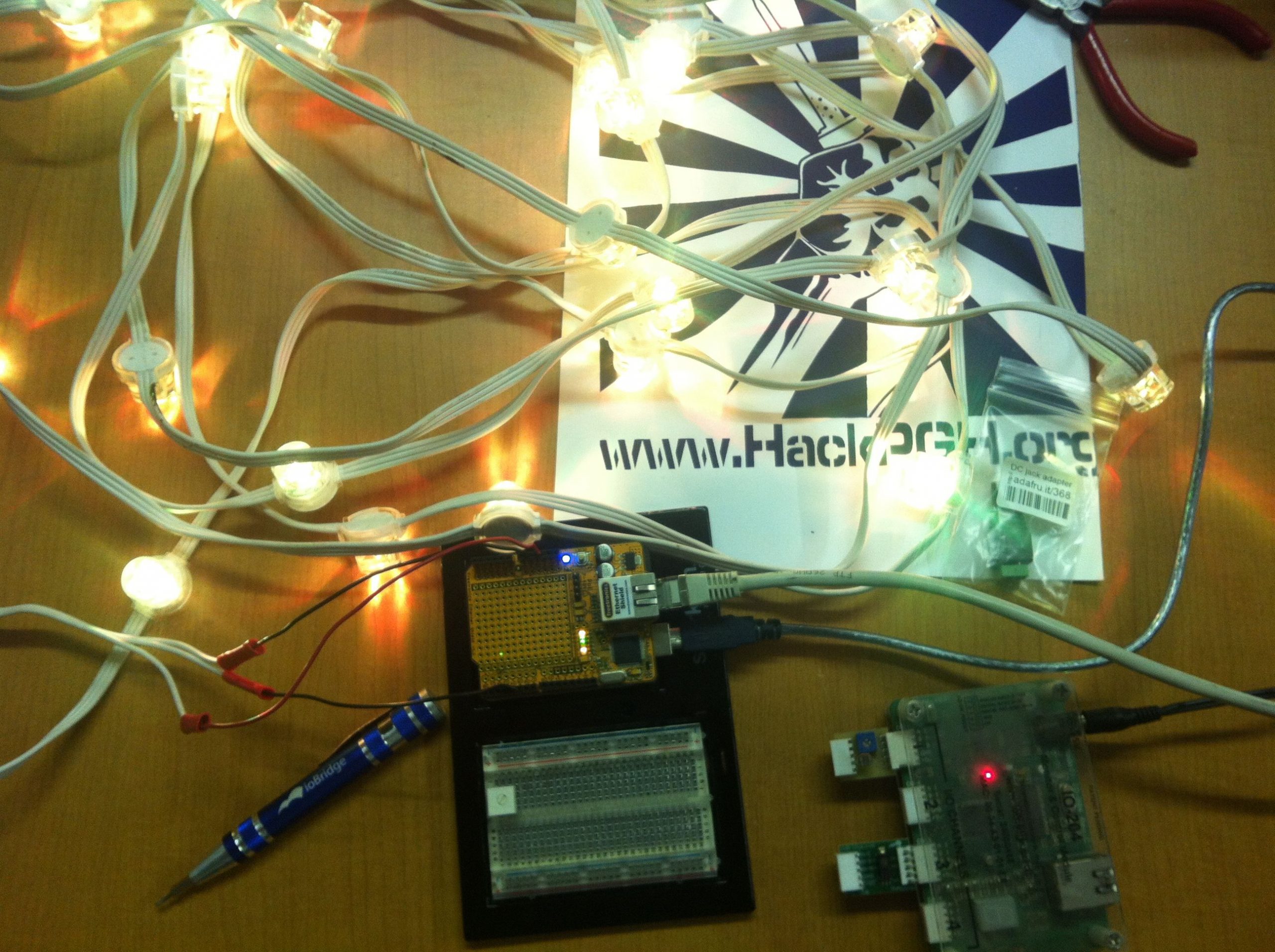
To join the CheerLights project, you need to build a display of the latest CheerLights color. The display can be a physical set of multicolored lights or a virtual display like a web page, widget, or app. In all cases, the displays read the latest CheerLights color using the CheerLights API.
Build an IoT Project with CheerLights
Each guide gets you to a light, a screen, or a program that shows the current CheerLights color and changes when anyone sets a new one.
- WLED, no code: Build Your First CheerLights Light with WLED takes an ESP32 board and an LED strip from the box to the CheerLights color. CheerLights + WLED has the MQTT settings on one page, and Flash WLED on an ESP32-C3 and Sync It to CheerLights covers flashing with esptool.
- An ESP32 board: the CheerLights ESP32 firmware installs from the browser and follows the color over Wi-Fi or Bluetooth. To write your own sketch, use the Arduino library below; it runs on ESP32.
- A Raspberry Pi Pico W: CheerLights + Raspberry Pi Pico W + MicroPython sets up Thonny and Wi-Fi and lights a Pimoroni Galactic Unicorn in the current color. For Halloween, Make Your Own CheerLights Display for Halloween uses Pimoroni’s Wireless Plasma Kit.
- An Arduino board: the Arduino Library for CheerLights installs from the Library Manager and works on ESP32, ESP8266, and Wi-Fi Arduino boards such as the Uno R4 WiFi and MKR WiFi 1010. Call
CheerLights.getCurrentColor()and set your LEDs. - Python: the Official Python Package for the CheerLights API (
cheerlights-apion PyPI) reads the current color, its HEX value, and the history. - MATLAB: Use MATLAB to Read the Latest CheerLights Color from ThingSpeak does it in two lines with
webread. The CheerLights MATLAB package adds the history, the palette, and a watcher. - Home Assistant: CheerLights for Home Assistant adds the color as a sensor and a Follow switch, so the lights you already have change with CheerLights.
- A web page: CheerLights JavaScript Widgets embed the live color (snow, aurora, a clock, the logo) on a website, a WordPress blog, or a Home Assistant dashboard.
- A terminal: CheerLights Terminal 0.2 follows the color live over MQTT on Windows, macOS, or Linux.
- An AI assistant: the CheerLights MCP Server 2.0 lets Claude and other assistants read the color, its history, and statistics. Point an agent at cheerlights.com/llms.txt for the whole API in one file.
- An Elgato Stream Deck: the CheerLights Stream Deck plugin shows and animates the current color on a key.
More builds from the community, from 2011 to now, are on the CheerLights blog. When your light works, set a color on the CheerLights Discord and watch it change.
Looking for a class or first project? IoT Project Ideas for Beginners lists 12 CheerLights builds, easiest first.


CheerLights GitHub
Check out GitHub (CheerLights GitHub and the NotHans GitHub) for our latest examples using Arduino and different types of lighting displays and client libraries.
CheerLights Arduino Library
We have published an official library that supports Arduino-compatible Wi-Fi-enabled boards, along with several examples. The library supports the Arduino MKR1000, Arduino MKR WiFi 1010, Arduino Uno WiFi Rev2, Arduino Mega WiFi Rev2, Arduino Uno R4 WiFi, ESP8266, and ESP32. Include the library at the top of your Arduino sketch, use the method CheerLights.getCurrentColor(), and use that color for your RGB LEDs. The most common configuration is an ESP WiFi device connected to a strip of NeoPixel LEDs.
Arduino Library Installation
- Open the Arduino IDE.
- Select Tools > Manage Libraries.
- Search for “CheerLights” and click “install”.
ThingSpeak Arduino / Particle Library
ThingSpeak has an official library for Arduino and Particle / Spark devices. Once you have installed the library, you can use have access to the latest CheerLights color by using the readStringField command on Arduino and Particle devices.
Library Installation
Arduino IDE
In the Arduino IDE, choose Sketch/Include Library/Manage Libraries. Click the ThingSpeak Library from the list, and click the Install button.
Particle / Spark IDE
In the Particle Web IDE, click the libraries tab, find “ThingSpeak”, and choose “Include in App”.
WLED
WLED is special firmware for ESP devices that runs multicolor LED lights. Once installed, it allows you to create cool effects, synchronize multiple devices, and build light shows.

For a step-by-step guide on an ESP32-C3 board, from flashing WLED to syncing it with CheerLights over MQTT, read Flash WLED on an ESP32-C3 and Sync It to CheerLights.
Command Line
To get the latest color name at the command line, type:
curl https://api.thingspeak.com/channels/1417/field/1/last.txt

CheerLights Terminal
CheerLights Terminal shows the current color in your terminal as a large ASCII art CheerLights logo. Clone the repo and run it with uv run cheerlights.
Web Widgets
A web widget is HTML, JavaScript, and CSS that displays the latest CheerLights color on your website, WordPress blog, or Tumblr site. This is an easy way for web developers to join the CheerLights project. To build a widget, you need to make an AJAX call to the CheerLights API, parse the response for the latest color, and set the color of an object with the color. field2 contains the HTML HEX color value of the newest color.
CheerLights Web Widget Links
- Solid Color Background: https://widgets.cheerlights.com/color.html
- CheerLights Logo: https://widgets.cheerlights.com/logo.html
- FearLights Logo: https://widgets.cheerlights.com/fearlights.html
- Snow: https://widgets.cheerlights.com/snow.html
- Lanterns: https://widgets.cheerlights.com/lanterns.html
- Leaves: https://widgets.cheerlights.com/leaves.html
- Aurora: https://widgets.cheerlights.com/aurora.html
- Particle: https://widgets.cheerlights.com/particle.html
- Digital Clock: https://widgets.cheerlights.com/clock.html

WordPress
To embed CheerLights web widgets on your WordPress site, use the “Shortcode” block in the editor and specify the width and height.

jQuery
Place code like this in the head of an HTML document to read the latest color from CheerLights and set the web page’s background color to that color.
$(document).ready(function() {
$.getJSON('https://api.thingspeak.com/channels/1417/feed/last.json', function(data) {
if (data.field2) {
$("body").css("background-color", data.field2);
}
});
}
MATLAB
Using MATLAB you can read in the latest color or do analysis on CheerLights to discover popular colors and how long colors get displayed during the day. To use CheerLights with MATLAB, install the ThingSpeak Support Toolbox. Once you install the toolbox, you can access the “thingSpeakRead” function. This is what you will use to read the latest colors into MATLAB.
latestCheer = thingSpeakRead(1417, 'outputFormat', 'table');
currentColor = latestCheer.LastCheerLightsCommand
Python Package
Install the CheerLights API Python Package using PyPI to interact with the CheerLights API from Python scripts.
This enables users to get the current CheerLights color, retrieve the color history, and perform various color-related actions. The CheerLights API Python Package is distributed by PyPI, and its code is hosted on GitHub.

AI Assistants
The CheerLights MCP server lets Claude and other AI assistants read the current color, the color history, and color statistics. To give any AI agent the whole CheerLights API in one file, point it at cheerlights.com/llms.txt.